• Skip to primary navigation
  • Skip to main content
  • Skip to primary sidebar
  • Skip to footer

All About Chromecast

  • Home
    • About AllAboutChromecast.com
    • Privacy
    • Forum
    • Contact
  • Manual
  • How-to Guide
    • How to watch YouTube without ads on Chromecast with Google TV (without YouTube Premium) and on Google TV Streamer?
    • A Comprehensive Guide to Enabling and Using the Android Debug Bridge (ADB) on Google TV Streamer and Chromecast with Google TV
    • How to enable developer options in Chromecast with Google TV and Google TV Streamer?
    • How to use Chromecast to stream music to dumb speakers (as Chromecast Audio does)?
    • How to Chromecast Amazon Prime Video to your TV?
    • How to use VLC media player on PC to stream music and video to Chromecast and Chromecast Audio?
      • How to use VLC for Android to stream local media to Chromecast?
    • How to use Chromecast Ultra to stream 4K content?
    • Comparison of 5 methods for streaming local media files to Chromecast
      • How to stream local video to Chromecast?
      • How to use Chromecast to share desktop screen (and audio) to TV?
      • How to use Plex media server to stream local media to Chromecast (from your PC)
      • How to use Videostream extension to stream local videos for Chromecast?
      • How to launch Videostream (and other Chrome apps as well)?
      • How to use Android app to stream local media files to Chromecast?
      • How to use Android screen mirroring with Chromecast
    • Chromecast VS Miracast: everything you need know about Chromecast, wireless display and screen mirroring
      • Chromecast VS Amazon Fire TV stick: which one is for you?
    • How to reset Chromecast (Factory Data Reset,FDR)?
      • How to rename Chromecast?
      • How to change Chromecast WiFi network?
      • How to change Chromecast time format and time zone?
      • How to use Chromecast backdrop to customize the TV screen?
      • How to use Chromecast guest mode?
      • How to check and claim Chromecast offers?
    • How to use Chromecast on Amazon Fire tablets (Fire HD, Fire HDX and Kindle Fire HDX)
    • How to stream photos and videos on OneDrive to Chromecast?
    • How to use the new Chromecast app?
    • Chromecast Preview Program: Everything you need to know
    • How to play games on Chromecast from mobile devices (Android and iOS)?
    • How to use Ethernet Adapter for Chromecast?
    • How to disable Google Home and Chromecast casting notification?
  • Chromecast Audio
    • Chromecast vs Chromecast Audio: which one is for you?
    • How to use Chromecast to stream music to dumb speakers (as Chromecast Audio does)?
    • How to setup Chromecast Audio?
    • How to use Chromecast Audio to stream music? and how to control Chromecast Audio?
    • Meaning of Chromecast Audio LED colors
    • What are the 3 compatible audio cables for Chromecast Audio? and why it matters?
    • Chromecast Audio vs Bluetooth
    • What are supported systems for Chromecast Audio companion device?
    • How to factory data reset Chromecast Audio?
    • How to use Chromecast Audio multi-room group playback?
  • Chromecast 101
    • Google TV Streamer vs Chromecast with Google TV: Everything you need to know
    • Chromecast 4th Gen (Chromecast with Google TV) is coming!
      • How to watch YouTube without ads on Chromecast with Google TV (without YouTube Premium) and on Google TV Streamer?
      • How to use Fast Pair on Chromecast with Google TV to pair headphones and earbuds with Chromecast?
      • Master the Voice Remote for Chromecast with Google TV and Google TV Streamer
      • Meaning of LED light on voice remote for Chromecast with Google TV and Google TV Streamer
    • What’s new in Chromecast 2018 (3rd gen of Chromecast)?
    • Chromecast Ultra vs Chromecast 2nd Gen
    • What’s new in the new Chromecast (Chromecast 2015)
      • Mythbusted: Why Your Old Chromecast is NOT Dead in 2026 (And How to Fix It)
    • Google released $15 Ethernet Adapter for Chromecast
    • Chromecast Preview Program: Everything you need to know
    • A Guide to Chromecast Offers
    • Chromecast VS Amazon Fire TV stick: which one is for you?
    • Chromecast VS Miracast: everything you need know about Chromecast, wireless display and screen mirroring

Look Behind Your TV: You Probably Already Have “Google Cast”

Last updated on: July 19, 2026, first published on: July 23, 2026 Leave a Comment

Look Behind Your TV: You Probably Already Have "Google Cast"

If your older 1st-generation or 2015 Chromecast has started buffering endlessly, dropping its connection, or stuttering through 1080p YouTube videos (although these old Chromecast devices should work for the next 10-20 years), your first instinct is likely to pull out your credit card. With Google heavily marketing the new premium $100 Google TV Streamer as the ultimate living room upgrade, you might feel pressured into an expensive purchase.

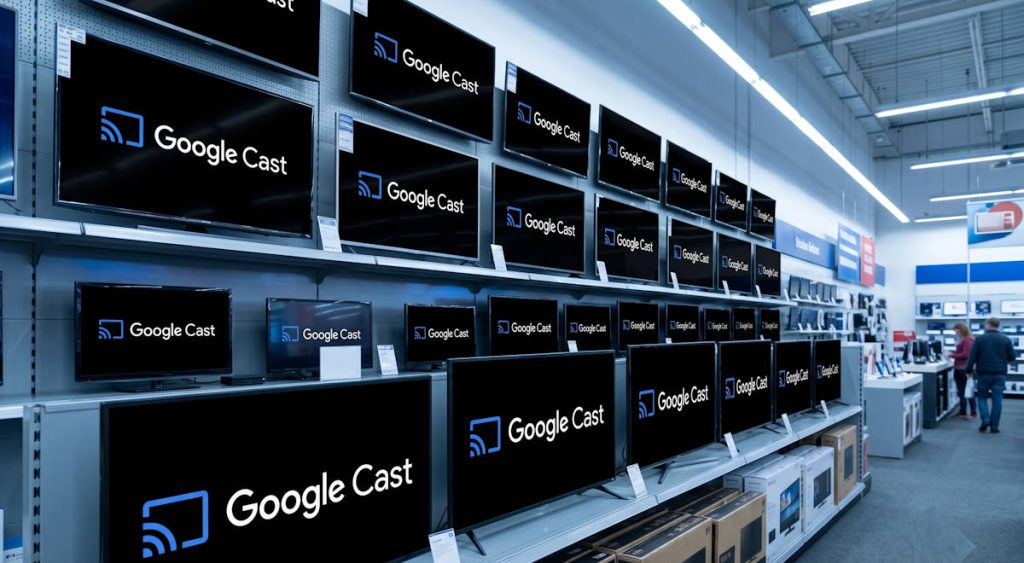
Before you rush to buy new hardware—or spend hours troubleshooting your old dongle’s Wi-Fi connection—you should look at the television already sitting in your living room. There is a very high probability that you don’t need to fix your old Chromecast or buy a replacement device at all, because the exact same casting technology is already fused directly into your display’s silicon.

In this guide, we will untangle the confusing corporate rebranding of Chromecast built-in to Google Cast, dive into the architectural differences of embedded System-on-a-Chip (SoC) casting versus external HDMI delivery, and mathematically explain why your network router might be hiding your television from your smartphone.

Here is how to figure out if you already have Google Cast built-in, and how to activate it.

Table of Contents hide
1) The Semantic Shift: Chromecast Built-In vs Google Cast
2) The Technical Architecture: Embedded SoC vs HDMI Dongles
2.1) The DIAL Protocol and Embedded Receivers
3) How to Find and Enable Google Cast on Your Smart TV
3.1) Step 1: Check Your Manufacturer
3.2) Step 2: Network Alignment (The Most Common Failure Point)
3.3) Step 3: Check the System Apps
4) Troubleshooting: The Mathematics of Multicast Failures
4.1) The Fix: IGMP Snooping and Multicast Routing
5) The Verdict: Don’t Buy Until You Try the Google Cast

The Semantic Shift: Chromecast Built-In vs Google Cast

For years, the branding surrounding Google’s casting protocol was a mess. If you bought a Sony, Vizio, or TCL television between 2017 and 2024, the retail box likely featured a badge that said Chromecast built-in.

However, as Google sunset the physical “Chromecast” hardware brand in favor of the “Google TV” moniker, they simultaneously initiated a massive semantic shift across their software ecosystem. The underlying technology did not change, but the consumer-facing name was reverted to its protocol root: Google Cast.

Therefore, if you are searching your modern TV’s settings menu for the word “Chromecast” and coming up empty, do not panic. Google Cast vs Chromecast is a distinction of hardware versus protocol. A Chromecast is a physical device you plug in; Google Cast is the invisible software protocol that makes the magic happen.

The Technical Architecture: Embedded SoC vs HDMI Dongles

To truly understand how to cast to smart TV systems effectively, we must examine the architectural differences between an external dongle and an embedded software receiver.

When you use an external HDMI dongle, the device contains its own System-on-a-Chip (SoC). It receives the encrypted video stream from the internet, decodes it into raw pixel data, and then encodes that data using Transition-Minimized Differential Signaling (TMDS) to blast it across the physical HDMI cable to your TV.

We can model the latency pipeline (L_{ext}) for an external HDMI dongle as:

L_{ext} = L_{net} + L_{decode} + L_{TMDS} + L_{panel}

Where:

  • L_{net} is the network buffering and packet transit time.
  • L_{decode} is the time taken by the dongle’s CPU/GPU to decode the H.265/VP9 stream.
  • L_{TMDS} is the latency introduced by HDMI encoding and transmission.
  • L_{panel} is the television’s internal image processing and pixel response time.

Conversely, when you utilize Google Cast built-in on a Smart TV, the architecture is vastly streamlined. The television’s primary SoC handles the network request, decodes the stream, and sends the pixel data directly to the panel controller via internal LVDS (Low-Voltage Differential Signaling) or V-by-One HS interfaces.

The latency model for an embedded receiver (L_{emb} eliminates the HDMI TMDS hop entirely:

L_{emb} = L_{net} + L_{SoC\_decode} + L_{panel}

Because the HDMI encoding/decoding step is bypassed, L_{emb} is theoretically faster than L_{ext}. This means that casting directly to your smart TV can actually result in slightly faster load times and fewer audio-sync issues—provided your TV’s internal SoC (L_{SoC\_decode}) has comparable processing power to your old external dongle.

Google Streamer 4K – Fast Streaming Entertainment with Voice Search Remote, Watch Movies, Shows, Live Channels and Netflix in HDR, Smart Home Control, 32 GB Storage, Porcelain
Amazon Fire TV Stick 4K Select (newest model), start streaming in 4K, AI-powered search, and free & live TV, find shows faster with Alexa+
Google Streamer 4K – Fast Streaming Entertainment with Voice Search Remote, Watch Movies, Shows, Live Channels and Netflix in HDR, Smart Home Control, 32 GB Storage, Porcelain
Amazon Fire TV Stick 4K Select (newest model), start streaming in 4K, AI-powered search, and free & live TV, find shows faster with Alexa+
$99.98
$21.99
Amazon Prime
Amazon Prime
Buy on Amazon
Buy on Amazon
Google Streamer 4K – Fast Streaming Entertainment with Voice Search Remote, Watch Movies, Shows, Live Channels and Netflix in HDR, Smart Home Control, 32 GB Storage, Porcelain
$99.98
Amazon Prime
Buy on Amazon
Amazon Fire TV Stick 4K Select (newest model), start streaming in 4K, AI-powered search, and free & live TV, find shows faster with Alexa+
$21.99
Amazon Prime
Buy on Amazon

The DIAL Protocol and Embedded Receivers

Under the hood, your smart TV is running a daemon that listens for Discovery and Launch (DIAL) requests.

When you boot up your television, the Google Cast receiver app initializes an HTTP server and binds it to a local port (usually port 8008 or 8009). It then broadcasts an mDNS (Multicast DNS) packet across your local network to announce its presence.

The mDNS payload looks something like this:

_googlecast._tcp.local.
Name: Living Room TV
TXT records:
  id=0123456789abcdef
  ve=05
  md=Bravia 4K VH2
  ic=/setup/icon.png
  fn=Living Room TV
  ca=4101
  st=1

When you open the YouTube app on your phone, it sends out a multicast query. If it receives this TXT record back from your TV, the “Cast” icon illuminates on your screen.

How to Find and Enable Google Cast on Your Smart TV

If your old dongle is struggling to maintain a connection, follow these steps to see if your TV can natively pick up the slack.

Step 1: Check Your Manufacturer

Most major television manufacturers adopted the Cast protocol natively. If you own a display from any of the following brands released after 2018, you almost certainly have an embedded receiver:

  • Sony (All Android TV and Google TV models)
  • TCL (Google TV models, though not their Roku variants)
  • Hisense (Android TV / Google TV models)
  • Vizio (SmartCast OS models)
  • Philips (Android TV models)
  • Samsung (2026 and later models)
  • LG (2026 and later models)

Beasides, any TV with Google TV should have Google Cast built-in.

Note: Traditionally, Samsung and LG utilize proprietary operating systems—Tizen and WebOS, respectively. While apps like YouTube can still cast to them via the older DIAL protocol, they do not feature native, system-wide Google Cast support for mirroring. In 2026, Samsung and LG decided to launch new smart TVs with Google Cast. Some 2025 and 2024 models may also support Google Cast after a firmware update.

TCL 50-Inch Class S5 4K UHD LED Smart TV with Google TV (50S551G, 2024 Model), Google Assistant Built-in with Voice Remote, Compatible with Alexa, Streaming Television
  • 4K UltraHD Resolution – Experience incredible detail with 4X the resolution of 1080p Full HDTVs.
  • High Brightness LED Backlight – Enjoy a brilliant picture in any room.
  • TCL AIPQ Processor with Deep Learning AI – Powerful, advanced processor intelligently optimizes the color, contrast, and clarity for an unrivaled 4K HDR experience.
  • Motion Rate 240 with MEMC Frame Insertion – Combines multiple motion enhancement technologies for best-in-class motion clarity.
  • HDR PRO+ with Dolby Vision, HDR10+, HDR10, & HLG – Enjoy enhanced contrast, accurate colors and fine details utilizing all the most advanced HDR formats.
$285.47
Buy on Amazon

Step 2: Network Alignment (The Most Common Failure Point)

For the mDNS discovery packets to successfully travel from your TV to your smartphone, both devices must reside on the exact same IP subnet.

If your phone is connected to 192.168.1.15 and your TV is connected to a “Guest Network” at 192.168.2.20, the multicast packets will be dropped by the router’s firewall. Ensure both devices are on the identical SSID and subnet.

Step 3: Check the System Apps

Sometimes, the background process responsible for casting crashes or is put to sleep by the TV’s aggressive memory management. To wake it up:

  1. Navigate to your TV’s Settings gear icon.
  2. Go to Apps > See all apps.
  3. Scroll down and select Show system apps.
  4. Look for Google Cast (or Chromecast built-in on older firmware).
  5. Ensure the app is “Enabled.” If it is acting buggy, select “Clear Cache” and “Force Stop,” then reboot the TV.

Troubleshooting: The Mathematics of Multicast Failures

What happens if you know your TV supports Google Cast, your phone is on the same Wi-Fi network, but the Cast icon simply refuses to appear?

If you are trying to fix Google Cast not working on an embedded TV, the culprit is almost always your network router mishandling Multicast DNS.

Multicast packets (unlike Unicast packets, which go from one specific IP to another) are sent to a designated group address. For mDNS, this IPv4 address is universally 224.0.0.251.

To transmit this packet across the physical Ethernet or Wi-Fi layer, the router must mathematically map this IP address to a physical MAC address. According to the IETF RFC 1112 standard, the formula for converting a multicast IPv4 address to a MAC address involves a bitwise OR (\lor) and a bitwise AND (\land) operation:

MAC_{multicast} = \text{01:00:5E:00:00:00} \lor (\text{IP}_{mDNS} \land \text{00:7F:FF:FF})

If we plug in the mDNS address (224.0.0.251, which is E0:00:00:FB in hexadecimal), the lower 23 bits are extracted:

MAC_{multicast} = \text{01:00:5E:00:00:00} \lor \text{00:00:00:FB}

MAC_{multicast} = \text{01:00:5E:00:00:FB}

Why this math matters: If your router or network switch has a bug in its firmware, or if it is aggressively filtering unknown MAC addresses to save Wi-Fi bandwidth, it will drop any packet destined for 01:00:5e:00:00:fb. When this packet drops, your phone never hears the TV screaming “I am here!”, and the connection fails.

The Fix: IGMP Snooping and Multicast Routing

To solve this, log into your wireless router’s administrator panel (usually by typing 192.168.1.1 into your browser). Look for the advanced network settings and check the following parameters:

  1. Enable IGMP Snooping: Internet Group Management Protocol (IGMP) snooping allows the router to listen to the multicast group memberships. Enabling this ensures the router forwards the 224.0.0.251 packets to the correct devices instead of dropping them.
  2. Disable AP Isolation: “Access Point Isolation” prevents wireless devices from communicating with one another. This is great for a coffee shop, but fatal for Google Cast. Ensure it is disabled.
  3. Enable Multicast Routing (mDNS / Bonjour): Some modern mesh routers (like Eero or Ubiquiti) have a specific toggle to allow mDNS packets to traverse across different Wi-Fi access points.

The Verdict: Don’t Buy Until You Try the Google Cast

If you have successfully enabled the Google Cast built-in feature on your television, you have essentially upgraded your living room for free. Your smartphone will hand off streams to your TV’s SoC just as cleanly as it handed them off to your old hardware, and you can unplug the aging dongle entirely.

However, relying on your TV’s embedded SoC does have a shelf life. Television manufacturers are notorious for abandoning software updates. While your TV’s SoC may handle L_{SoC\_decode} perfectly today, three years from now, the internal RAM may become choked by bloated firmware updates, leading to buffering and menu lag.

If your TV is relatively new (purchased within the last 3-4 years), stick with the embedded Google Cast receiver. But if your TV menus are already starting to feel sluggish and unresponsive, or if you simply prefer having a physical remote control rather than using your phone, then it is time to look at dedicated, high-speed external hardware.


Share this:

  • Share on Facebook (Opens in new window) Facebook
  • Share on LinkedIn (Opens in new window) LinkedIn
  • Share on X (Opens in new window) X
  • Share on Reddit (Opens in new window) Reddit

Filed Under: Chromecast news, Chromecast tips and tricks Tagged With: 4K, Android TV, AP Isolation, chromecast, Chromecast with Google TV, DIAL, Google Cast, google cast sdk, Google TV, Google TV Streamer, HDMI, IGMP, latency, mDNS, router, SmartTube, SoC, TV

Reader Interactions

Leave a ReplyCancel reply

Primary Sidebar

Stop Telling Boring One-Liners. Start Telling Unforgettable Stories

All Over The Map: Funny Stories for Every Place You Go—From 36,000 Feet to the Bedroom
$4.99
Buy on Amazon

Chromecast with Google TV

Chromecast with Google TV (HD) - Streaming Stick Entertainment on Your TV with Voice Search - Watch Movies, Shows, and Live TV in 1080p HD - Snow
Buy on Amazon
Sale Google Pixel 10 - Unlocked Android Smartphone with Gemini, Your Google AI Assistant - Advanced Triple Rear Camera, Fast-Charging 24+ Hour Battery, and 6.3' Actua Display - Frost - 128 GB
Google Pixel 10 - Unlocked Android Smartphone with Gemini, Your Google AI Assistant - Advanced Triple Rear Camera, Fast-Charging 24+ Hour Battery, and 6.3" Actua Display - Frost - 128 GB
Amazon Prime
$599.00
Buy on Amazon

RSS Galaxy S25 Guides

  • All New Features of One UI 8 (Android 16) Update for Galaxy S25, S24, S23, and S22
  • One UI 8 Update Highlights for Galaxy S25, S24, S23, and S22
  • How to manage camera modes on Galaxy S25 (and Galaxy S24, S23, S22, and S21 with One UI 7 update)?
  • How to Use Galaxy S25 Camera App?
  • A Definite Guide to Galaxy S25 Flipsuit Case
  • How to Access and Customize Now Brief on Galaxy S25?
  • Meaning of Galaxy S25 Status Icons and Notification Icons
  • Layout of Galaxy S25, S25+, and S25 Ultra
  • New Galaxy AI features in Galaxy S25, S25+, and S25 Ultra
  • Top 10 new features of Galaxy S25, S25+, and S25 Ultra

RSS Galaxy S24 Guides

  • The definitive guide to One UI 7 (Android 15) update for Galaxy S24, S23, S22, and S21
  • The Definitive Guide to Galaxy AI on Galaxy S24, S23, S22, Fold 6, Fold 5, Flip 6, and Flip 5
  • Use the Light Performance Profile to Extend Battery Life and Reduce Heat on Galaxy S24, S23, S22, and S21 (all Samsung Galaxy Phones with Android 14/One UI 6.0)
  • How to adjust lock screen timeout on Galaxy S24, S23, S22, and other Galaxy devices?
  • How to use Circle to Search on Galaxy S24?
  • Meaning of Galaxy S24 status icons and notification icons on Galaxy S24, S24+, and S24 Ultra

RSS Galaxy S23 Guides

  • Explanation of all One UI 6.1 features for Galaxy S23, S23+, S23 Ultra, and other Galaxy devices
  • How to use One-Tap Editing in the Android 14 (One UI 6) update?
  • How to enable and use Auto Scan to scan documents automatically on Galaxy S23, S22, and S21?
  • New camera features in One UI 6 (Android 14) update for Galaxy S23, S22, and S21
  • Galaxy S23 User Manual in American English with Android 14 (One UI 6) Update
  • Galaxy S23 User Manual in British English with Android 14 (One UI 6) update

RSS Galaxy S22 Guides

  • A Complete Guide for Android 14 (One UI 6) Update on Samsung Galaxy Devices
  • How to touch and hold to customize Lock Screen on Galaxy S22, S21, and S20 with the Android 13 update?
  • How to use Maintenance Mode on Galaxy S23, S22, S21, and S20 with Android 13 (One UI 5)?
  • How to extract text from photos and images on Galaxy S22, S21, and S20?

Chromecast Tips and Tricks

RSS Galaxy S21 Guides

  • Top 12 new features in Android 12 update for Galaxy S21, S20 and S10
  • Android 12 update vs One UI 4.0 vs One UI 4.1: update Galaxy S21, S20 and S10 to Android 12
  • How to set and resize photo size on Samsung Galaxy S21, S20, S10, and S9 without using any third-party apps?
  • How to Customize Galaxy S21 Home Screen?

RSS Headphone Guides

  • Bose Ultra Open Earbuds vs. Shokz OpenFit 2+: The Battle of the Beams
  • Understand The Physics of Open-Ear Directional Audio
  • Bone Conduction Headphones Buyer’s Guide: 2026 Edition
  • Bone Conduction Audio Technology: A Technical Breakdown
  • Science And Architecture of Bluetooth Auracast
  • Bluetooth LE Audio and the LC3 Codec: A Technical Deep Dive
  • The Physics and Engineering of Super Wide Band (SWB) Voice
  • True Wireless Stereo (TWS) Explained

RSS Moto G Guide

  • Stylus features on Moto G Stylus (all models)
  • What’s new in Moto G 2024? Moto G 5G 2024 vs Moto G Power 2024 vs Moto G Play 2024
  • Understand Moto G Model Names
  • Thank You
  • Moto G8 vs Moto G8 Power vs Moto G8 Power Lite vs Moto G Power vs Moto G Stylus vs Moto G Pro vs Moto G fast: What are the differences?
  • Moto G8 User Manual for Moto G8 Plus and Moto G8 Play

RSS Neato XV Guides

  • Neato XV Revival Guide: Repair, Hack & Restore (The 2026-2027 Edition)
  • The Scavenger’s Guide: How to Buy “Broken” Neato XVs for $20 (And Fix Them)
  • 3D Print Your Own Spare Parts: The Neato XV STL Guide
  • Stop Guessing: How to Use NeatoControl to “X-Ray” Your Robot
  • The Forbidden Upgrade: Neato Firmware Update to Vorwerk VR100 (Offline Guide)
  • The Vault: Neato XV & Vorwerk VR100 Software Repository
  • Neato Charging Station Blinking Green? The $2 C10 Capacitor Fix
  • Neato Error 3000 Fix: Lidar Motor & Belt Replacement Guide (XV-21, XV-15, XV-13, XV-11)
  • The Battery Dilemma: How to Double Your Neato XV’s Runtime (NiMH vs. Lithium)?
  • Why the “Ancient” Neato XV is Better Than Modern Robots (In 2025 and 2026)

RSS Moto E Guide

  • How to use SIM cards on Moto E6, E6 Plus, E6 Play, and E6s 2020?
  • Moto E6 vs Moto E6 Plus vs Moto E6 Play vs Moto E6s: what are the major differences?
  • Moto E6 Guides
  • Moto E 2nd Gen (Moto E 4G): the best value-for-money smartphone in 2015

RSS Amazon Fire Tablet Guides

  • Fire Tablet Buyer’s Guide 2025
  • How to use Writing Assist on Fire Tablet?
  • How to use Wallpaper Creator on your Fire tablet?
  • How to Use Webpage Summaries on Your Fire Tablet?
  • What’s new in Fire HD 8 2024 (12th Gen)?

Footer

RSS Drive In Singapore

  • Singapore ERP (Electronic Road Pricing): 6 Facts You Need to Know
  • Car Insurance in Singapore Explained
  • Top 5 rules of driving in Singapore safely and legally during COVID-19 Circuit Breaker period
  • Understand COE Price by 10 Simple Questions
  • How to convert a foreign driving license to a Singapore driving license?
  • How to get a Touch ‘n Go card as a Singapore driver?
  • What is covered in the car warranty in Singapore? What is not?
  • What is the Singapore Road Speed Limit?

RSS Galaxy S10 Guides

  • End of security update for Galaxy S10, S10+ and S10e
  • Top 10 new features in Android 10 update for Galaxy S10
  • Top 5 new features added in Galaxy S10 September Update
  • How to move apps to the micro SD card to free phone storage on Galaxy S10 ?
  • Galaxy S10 wireless charging guide

RSS Samsung Galaxy S5 Guide

  • How to enter Galaxy S5 recovery mode?
  • How to set Galaxy S5 photo size and video size?
  • How to use Galaxy S5 camera voice control?

RSS Moto X Guide

  • Welcome on board, Motorola Razr!
  • Official Moto X4 User manual (User guide for Moto X 4th Gen , Moto X 2017)
  • What’s new in Android Marshmallow update for Moto X (Moto X 2015, Moto X 2014, Moto X Style and Moto X Pure edition)?

RSS Chinese Music World

  • How to Cast Chinese Music Radio to Chromecast or Google Home?
  • 十面埋伏 (Ambushed,Pipa,琵琶曲,Shi Mian Mai Fu)
  • Meet in Yurt(敖包相会, Ao Bao Xiang Hui,Folk song,民歌)
  • Purple Bamboo Melody(紫竹调, Zi Zhu Diao,Yangqin,扬琴)
  • Solitary Orchid (幽兰, You Lan, Guqin, 古琴)

RSS Galaxy S20 Guides

  • The End of the Road: No Android 14 Update for the Galaxy S20
  • How to Use Enhanced Processing on Galaxy S20 with Android 11 update?
  • How to access, use, and customise widgets on Galaxy S20 lock screen and AOD screen with Android 11 update for Galaxy S20?
  • How to update Galaxy S20 to Android 11?
  • How to use Galaxy S20 lockdown mode?
  • Top 11 new features in Galaxy S20 Android 11 update
  • How to use Galaxy S20 recovery mode?

RSS Google Home Speaker

  • How to Use Quick Gestures on Nest Hub 2nd Gen and Nest Hub Max?
  • Understand the layout of Nest Hub (including Nest Hub 2nd Gen, Google Home Hub)
  • How to control Nest Audio?
  • Nest Audio Guides
  • Layout of Google Nest Mini (Google Home Mini 2nd Gen)
  • How to connect Google Home to a Bluetooth speaker?

© 2013–2026 · All About Chromecast: The best Chromecast guide, tips and tricks for Chromecast, Chromecast Ultra, and Chromecast Audio. · Hosted by PTRHosting
· Powered by Genesis framework for WordPress

Disclaimer: Chrome, Chromecast, Chromecast Ultra, and Chromecast Audio are trademarks of Google Inc. This website is NOT affiliated with Google Inc in any way. All the information provided on this website is provided on an "as is" and "as available" basis and you agree that you use such information entirely at your own risk.

Add All About Chromecast to your Homescreen!

Add
We use cookies to give you the best online experience. By using our website you agree to our use of cookies in accordance with our cookie policy.
pixel