• Skip to primary navigation
  • Skip to main content
  • Skip to primary sidebar
  • Skip to footer

All About Chromecast

  • Home
    • About AllAboutChromecast.com
    • Privacy
    • Forum
    • Contact
  • Manual
  • How-to Guide
    • How to watch YouTube without ads on Chromecast with Google TV (without YouTube Premium) and on Google TV Streamer?
    • A Comprehensive Guide to Enabling and Using the Android Debug Bridge (ADB) on Google TV Streamer and Chromecast with Google TV
    • How to enable developer options in Chromecast with Google TV and Google TV Streamer?
    • How to use Chromecast to stream music to dumb speakers (as Chromecast Audio does)?
    • How to Chromecast Amazon Prime Video to your TV?
    • How to use VLC media player on PC to stream music and video to Chromecast and Chromecast Audio?
      • How to use VLC for Android to stream local media to Chromecast?
    • How to use Chromecast Ultra to stream 4K content?
    • Comparison of 5 methods for streaming local media files to Chromecast
      • How to stream local video to Chromecast?
      • How to use Chromecast to share desktop screen (and audio) to TV?
      • How to use Plex media server to stream local media to Chromecast (from your PC)
      • How to use Videostream extension to stream local videos for Chromecast?
      • How to launch Videostream (and other Chrome apps as well)?
      • How to use Android app to stream local media files to Chromecast?
      • How to use Android screen mirroring with Chromecast
    • Chromecast VS Miracast: everything you need know about Chromecast, wireless display and screen mirroring
      • Chromecast VS Amazon Fire TV stick: which one is for you?
    • How to reset Chromecast (Factory Data Reset,FDR)?
      • How to rename Chromecast?
      • How to change Chromecast WiFi network?
      • How to change Chromecast time format and time zone?
      • How to use Chromecast backdrop to customize the TV screen?
      • How to use Chromecast guest mode?
      • How to check and claim Chromecast offers?
    • How to use Chromecast on Amazon Fire tablets (Fire HD, Fire HDX and Kindle Fire HDX)
    • How to stream photos and videos on OneDrive to Chromecast?
    • How to use the new Chromecast app?
    • Chromecast Preview Program: Everything you need to know
    • How to play games on Chromecast from mobile devices (Android and iOS)?
    • How to use Ethernet Adapter for Chromecast?
    • How to disable Google Home and Chromecast casting notification?
  • Chromecast Audio
    • Chromecast vs Chromecast Audio: which one is for you?
    • How to use Chromecast to stream music to dumb speakers (as Chromecast Audio does)?
    • How to setup Chromecast Audio?
    • How to use Chromecast Audio to stream music? and how to control Chromecast Audio?
    • Meaning of Chromecast Audio LED colors
    • What are the 3 compatible audio cables for Chromecast Audio? and why it matters?
    • Chromecast Audio vs Bluetooth
    • What are supported systems for Chromecast Audio companion device?
    • How to factory data reset Chromecast Audio?
    • How to use Chromecast Audio multi-room group playback?
  • Chromecast 101
    • Google TV Streamer vs Chromecast with Google TV: Everything you need to know
    • Chromecast 4th Gen (Chromecast with Google TV) is coming!
      • How to watch YouTube without ads on Chromecast with Google TV (without YouTube Premium) and on Google TV Streamer?
      • How to use Fast Pair on Chromecast with Google TV to pair headphones and earbuds with Chromecast?
      • Master the Voice Remote for Chromecast with Google TV and Google TV Streamer
      • Meaning of LED light on voice remote for Chromecast with Google TV and Google TV Streamer
    • What’s new in Chromecast 2018 (3rd gen of Chromecast)?
    • Chromecast Ultra vs Chromecast 2nd Gen
    • What’s new in the new Chromecast (Chromecast 2015)
    • Google released $15 Ethernet Adapter for Chromecast
    • Chromecast Preview Program: Everything you need to know
    • A Guide to Chromecast Offers
    • Chromecast VS Amazon Fire TV stick: which one is for you?
    • Chromecast VS Miracast: everything you need know about Chromecast, wireless display and screen mirroring

Meaning of LED light on voice remote for Chromecast with Google TV and Google TV Streamer

Last updated on: August 31, 2024, first published on: December 5, 2021 Leave a Comment

Meaning of LED light on voice remote for Chromecast with Google TV

The LED light on the voice remote for Chromecast with Google TV and Google TV Streamer can give you some quick information about the status of the remote.

This Chromecast with Google TV guide explains the meaning of the LED light on the voice remote for Chromecast with Google TV and Google TV Streamer to help you understand the status of the remote correctly.

Please note that this guide only applies to the official voice remote, which is bundled with the Chromecast with Google TV (both the 4K and HD versions) and the latest Google TV Streamer.

You may get a replacement from Google Store. Third-party Android TV remote controls may have totally different designs. The meaning of LED lights on these third-party remotes, if present, depends on the manufacturer. Google TV Streamer is the successor to Chromecast with Google TV. This guide applies to both.

Table of Contents hide
1) Where is the LED light on the voice remote for Chromecast with Google TV?
2) Meaning of the LED light on the voice remote for Chromecast with Google TV
2.1) Solid
2.2) Pulsing slowly
2.3) Flash twice quickly

Where is the LED light on the voice remote for Chromecast with Google TV?

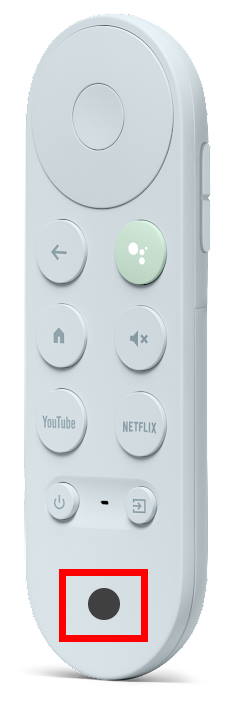
As explained in this guide and shown in the picture above, the LED light is located in the lower part of the front panel below the Power button and the input source switch button.

When it is not lit up, it is hard to find it actually. Also, the LED light is white only.

The LED light alerts you to the status of the voice remote. You may take action accordingly.

The LED light generally does not change when you use Chromecast with Google TV, such as enabling the developer options, pairing headsets, or sideloading apps.

Meaning of the LED light on the voice remote for Chromecast with Google TV

The LED light is off most of the time.  When it lights up, you may wonder what is the meaning.

Here are the three patterns of the LED light.

Solid

Meaning of LED light on voice remote for Chromecast with Google TV: microphone is engaged or firmware update

When the microphone is engaged (i.e., when you search with your voice), the LED light will keep solid white until you finish speaking.

As explained here, there is a microphone on the voice remote.  The microphone can pick up voices in a relatively large area. So it is not necessary to put it close to your lips.

Please note that the microphone on the voice remote for Chromecast with Google TV can be activated by pressing the Google Assistant button or switching to voice input (typing) for any apps installed on the dongle.

The second scenario for the solid white LED light is a firmware update. If the update is being applied, you will also see the solid white LED.

In this scenario, you should wait until the LED is turned off to use the voice remote.

Pulsing slowly

pulse slowly

The LED will pulse slowly when the voice remote is ready to pair. Of course, this suggests the voice remote has not been paired to the Chromecast with the Google TV dongle yet.

During the pairing process, it will continue to pulse slowly.

Once pairing is successful, it should flash twice quickly, and then the light should be turned off.

The pairing process normally should take less than 2 minutes. So, if the LED light pulses slowly for more than 2 mins, you may try the pairing process again.

Flash twice quickly

flash twice quickly

As mentioned earlier, the LED flashes twice quickly once the pairing is successful.

The second scenario of seeing the LED flash twice quickly is after you have installed batteries on the remote.

Please note, in both scenarios, the LED just flashes twice, then turns off.

Chromecast with Google TV (HD) - Streaming Stick Entertainment on Your TV with Voice Search - Watch Movies, Shows, and Live TV in 1080p HD - Snow
Google Chromecast with Google TV (4K)- Streaming Stick Entertainment with Voice Search - Watch Movies, Shows, and Live TV in 4K HDR - Snow
Chromecast with Google TV (HD) - Streaming Stick Entertainment on Your TV with Voice Search - Watch Movies, Shows, and Live TV in 1080p HD - Snow
Google Chromecast with Google TV (4K)- Streaming Stick Entertainment with Voice Search - Watch Movies, Shows, and Live TV in 4K HDR - Snow
Price not available
Price not available
-
-
Buy on Amazon
Buy on Amazon
Chromecast with Google TV (HD) - Streaming Stick Entertainment on Your TV with Voice Search - Watch Movies, Shows, and Live TV in 1080p HD - Snow
Price not available
-
Buy on Amazon
Google Chromecast with Google TV (4K)- Streaming Stick Entertainment with Voice Search - Watch Movies, Shows, and Live TV in 4K HDR - Snow
Price not available
-
Buy on Amazon

Do you have any questions about the meaning of the LED light on the voice remote for Chromecast with Google TV and Google TV Streamer?

If you have any questions about the meaning of the LED light on the voice remote for Chromecast with Google TV and Google TV Streamer, please let us know in the comment box below.

The community will try to help you find the solution.

For Chromecast Audio guides, please visit the Chromecast Audio guide page.

If your question is on Chromecast, including Chromecast Ultra,  1st generation Chromecast, and 2nd gen Chromecast (aka Chromecast 2015), and the 3rd gen Chromecast (Chromecast 2018), please visit the Chromecast how-to guides page.

Share this:

  • Share on Facebook (Opens in new window) Facebook
  • Share on LinkedIn (Opens in new window) LinkedIn
  • Share on X (Opens in new window) X
  • Share on Reddit (Opens in new window) Reddit

Filed Under: Chromecast tips and tricks Tagged With: 4K, 4K version, Android TV, Bluetooth, Chromecast with Google TV, developer options, Fast Pair, Google TV Streamer, HD version, LED light, microphone, sideload apps, SmartTube, voice remote

Reader Interactions

Leave a ReplyCancel reply

Primary Sidebar

Stop Telling Boring One-Liners. Start Telling Unforgettable Stories

All Over The Map: Funny Stories for Every Place You Go—From 36,000 Feet to the Bedroom
$4.99
Buy on Amazon

Chromecast with Google TV

Chromecast with Google TV (HD) - Streaming Stick Entertainment on Your TV with Voice Search - Watch Movies, Shows, and Live TV in 1080p HD - Snow
Buy on Amazon
Sale Google Pixel 10 - Unlocked Android Smartphone - Gemini AI Assistant - Advanced Triple Rear Camera, Fast-Charging 24+ Hour Battery, and 6.3' Actua Display - Frost - 128 GB (2025 Model)
Google Pixel 10 - Unlocked Android Smartphone - Gemini AI Assistant - Advanced Triple Rear Camera, Fast-Charging 24+ Hour Battery, and 6.3" Actua Display - Frost - 128 GB (2025 Model)
Amazon Prime
$599.00
Buy on Amazon

RSS Galaxy S25 Guides

  • All New Features of One UI 8 (Android 16) Update for Galaxy S25, S24, S23, and S22
  • One UI 8 Update Highlights for Galaxy S25, S24, S23, and S22
  • How to manage camera modes on Galaxy S25 (and Galaxy S24, S23, S22, and S21 with One UI 7 update)?
  • How to Use Galaxy S25 Camera App?
  • A Definite Guide to Galaxy S25 Flipsuit Case
  • How to Access and Customize Now Brief on Galaxy S25?
  • Meaning of Galaxy S25 Status Icons and Notification Icons
  • Layout of Galaxy S25, S25+, and S25 Ultra
  • New Galaxy AI features in Galaxy S25, S25+, and S25 Ultra
  • Top 10 new features of Galaxy S25, S25+, and S25 Ultra

RSS Galaxy S24 Guides

  • The definitive guide to One UI 7 (Android 15) update for Galaxy S24, S23, S22, and S21
  • The Definitive Guide to Galaxy AI on Galaxy S24, S23, S22, Fold 6, Fold 5, Flip 6, and Flip 5
  • Use the Light Performance Profile to Extend Battery Life and Reduce Heat on Galaxy S24, S23, S22, and S21 (all Samsung Galaxy Phones with Android 14/One UI 6.0)
  • How to adjust lock screen timeout on Galaxy S24, S23, S22, and other Galaxy devices?
  • How to use Circle to Search on Galaxy S24?
  • Meaning of Galaxy S24 status icons and notification icons on Galaxy S24, S24+, and S24 Ultra

RSS Galaxy S23 Guides

  • Explanation of all One UI 6.1 features for Galaxy S23, S23+, S23 Ultra, and other Galaxy devices
  • How to use One-Tap Editing in the Android 14 (One UI 6) update?
  • How to enable and use Auto Scan to scan documents automatically on Galaxy S23, S22, and S21?
  • New camera features in One UI 6 (Android 14) update for Galaxy S23, S22, and S21
  • Galaxy S23 User Manual in American English with Android 14 (One UI 6) Update
  • Galaxy S23 User Manual in British English with Android 14 (One UI 6) update

RSS Galaxy S22 Guides

  • A Complete Guide for Android 14 (One UI 6) Update on Samsung Galaxy Devices
  • How to touch and hold to customize Lock Screen on Galaxy S22, S21, and S20 with the Android 13 update?
  • How to use Maintenance Mode on Galaxy S23, S22, S21, and S20 with Android 13 (One UI 5)?
  • How to extract text from photos and images on Galaxy S22, S21, and S20?

Chromecast Tips and Tricks

RSS Galaxy S21 Guides

  • Top 12 new features in Android 12 update for Galaxy S21, S20 and S10
  • Android 12 update vs One UI 4.0 vs One UI 4.1: update Galaxy S21, S20 and S10 to Android 12
  • How to set and resize photo size on Samsung Galaxy S21, S20, S10, and S9 without using any third-party apps?
  • How to Customize Galaxy S21 Home Screen?

RSS Headphone Guides

  • Bone Conduction Headphones Buyer’s Guide: 2026 Edition
  • Bone Conduction Audio Technology: A Technical Breakdown
  • Science And Architecture of Bluetooth Auracast
  • Bluetooth LE Audio and the LC3 Codec: A Technical Deep Dive
  • The Physics and Engineering of Super Wide Band (SWB) Voice
  • True Wireless Stereo (TWS) Explained
  • The Complete Technical Guide to the Galaxy Buds 4 & Buds 4 Pro
  • The Right Fit of Galaxy Buds 4 — User Personas & Recommendations

RSS Moto G Guide

  • Stylus features on Moto G Stylus (all models)
  • What’s new in Moto G 2024? Moto G 5G 2024 vs Moto G Power 2024 vs Moto G Play 2024
  • Understand Moto G Model Names
  • Thank You
  • Moto G8 vs Moto G8 Power vs Moto G8 Power Lite vs Moto G Power vs Moto G Stylus vs Moto G Pro vs Moto G fast: What are the differences?
  • Moto G8 User Manual for Moto G8 Plus and Moto G8 Play

RSS Neato XV Guides

  • Neato XV Revival Guide: Repair, Hack & Restore (The 2026-2027 Edition)
  • The Scavenger’s Guide: How to Buy “Broken” Neato XVs for $20 (And Fix Them)
  • 3D Print Your Own Spare Parts: The Neato XV STL Guide
  • Stop Guessing: How to Use NeatoControl to “X-Ray” Your Robot
  • The Forbidden Upgrade: Neato Firmware Update to Vorwerk VR100 (Offline Guide)
  • The Vault: Neato XV & Vorwerk VR100 Software Repository
  • Neato Charging Station Blinking Green? The $2 C10 Capacitor Fix
  • Neato Error 3000 Fix: Lidar Motor & Belt Replacement Guide (XV-21, XV-15, XV-13, XV-11)
  • The Battery Dilemma: How to Double Your Neato XV’s Runtime (NiMH vs. Lithium)?
  • Why the “Ancient” Neato XV is Better Than Modern Robots (In 2025 and 2026)

RSS Moto E Guide

  • How to use Moto E6 camera?
  • How to use SIM cards on Moto E6, E6 Plus, E6 Play, and E6s 2020?
  • How to remove Moto E6 back cover (including Moto E6, Moto E6 Plus, Moto E6 Play)?
  • Moto E6 Guides

RSS Amazon Fire Tablet Guides

  • Fire Tablet Buyer’s Guide 2025
  • How to use Writing Assist on Fire Tablet?
  • How to use Wallpaper Creator on your Fire tablet?
  • How to Use Webpage Summaries on Your Fire Tablet?
  • What’s new in Fire HD 8 2024 (12th Gen)?

Footer

RSS Drive In Singapore

  • Singapore ERP (Electronic Road Pricing): 6 Facts You Need to Know
  • Car Insurance in Singapore Explained
  • Top 5 rules of driving in Singapore safely and legally during COVID-19 Circuit Breaker period
  • Understand COE Price by 10 Simple Questions
  • How to convert a foreign driving license to a Singapore driving license?
  • How to get a Touch ‘n Go card as a Singapore driver?
  • What is covered in the car warranty in Singapore? What is not?
  • What is the Singapore Road Speed Limit?

RSS Galaxy S10 Guides

  • End of security update for Galaxy S10, S10+ and S10e
  • Top 10 new features in Android 10 update for Galaxy S10
  • Top 5 new features added in Galaxy S10 September Update
  • How to move apps to the micro SD card to free phone storage on Galaxy S10 ?
  • Galaxy S10 wireless charging guide

RSS Samsung Galaxy S5 Guide

  • How to enter Galaxy S5 recovery mode?
  • How to set Galaxy S5 photo size and video size?
  • How to use Galaxy S5 camera voice control?

RSS Moto X Guide

  • Welcome on board, Motorola Razr!
  • Official Moto X4 User manual (User guide for Moto X 4th Gen , Moto X 2017)
  • What’s new in Android Marshmallow update for Moto X (Moto X 2015, Moto X 2014, Moto X Style and Moto X Pure edition)?

RSS Chinese Music World

  • How to Cast Chinese Music Radio to Chromecast or Google Home?
  • 十面埋伏 (Ambushed,Pipa,琵琶曲,Shi Mian Mai Fu)
  • Meet in Yurt(敖包相会, Ao Bao Xiang Hui,Folk song,民歌)
  • Purple Bamboo Melody(紫竹调, Zi Zhu Diao,Yangqin,扬琴)
  • Solitary Orchid (幽兰, You Lan, Guqin, 古琴)

RSS Galaxy S20 Guides

  • The End of the Road: No Android 14 Update for the Galaxy S20
  • How to Use Enhanced Processing on Galaxy S20 with Android 11 update?
  • How to access, use, and customise widgets on Galaxy S20 lock screen and AOD screen with Android 11 update for Galaxy S20?
  • How to update Galaxy S20 to Android 11?
  • How to use Galaxy S20 lockdown mode?
  • Top 11 new features in Galaxy S20 Android 11 update
  • How to use Galaxy S20 recovery mode?

RSS Google Home Speaker

  • How to Use Quick Gestures on Nest Hub 2nd Gen and Nest Hub Max?
  • Understand the layout of Nest Hub (including Nest Hub 2nd Gen, Google Home Hub)
  • How to control Nest Audio?
  • Nest Audio Guides
  • Layout of Google Nest Mini (Google Home Mini 2nd Gen)
  • How to connect Google Home to a Bluetooth speaker?

© 2013–2026 · All About Chromecast: The best Chromecast guide, tips and tricks for Chromecast, Chromecast Ultra, and Chromecast Audio. · Hosted by PTRHosting
· Powered by Genesis framework for WordPress

Disclaimer: Chrome, Chromecast, Chromecast Ultra, and Chromecast Audio are trademarks of Google Inc. This website is NOT affiliated with Google Inc in any way. All the information provided on this website is provided on an "as is" and "as available" basis and you agree that you use such information entirely at your own risk.

Add All About Chromecast to your Homescreen!

Add
We use cookies to give you the best online experience. By using our website you agree to our use of cookies in accordance with our cookie policy.
pixel
