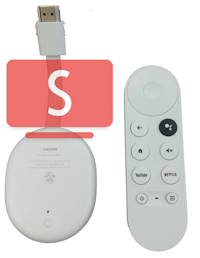
Many Chromecast owners are not aware that they can watch YouTube without ads on Chromecast with Google TV without paying for YouTube Premium.
YouTube ads have become less relevant to users in recent years, and therefore, many Chromecast owners want to use YouTube without ads.
This Chromecast how-to guide shows you step-by-step instructions for installing the free SmartTube app on Chromecast with Google TV to watch YouTube without ads for free.
Please note you can install apps on Chromecast with Google TV (both HD and 4K models. Both also support Fast Pair). The older Chromecast dongles (those without a voice remote control) do not have this capability because they are not based on Android.
Update: the new Google TV Streamer is just an update for Chromecast with Google TV, You can use SmartTube on it to enjoy ad-free YouTube, just like on Chromecast with Google TV. This guide also applies to Google TV Streamer.
An alternative route to sideload the SmartTube app is through ADB commands.
The requirements for watching YouTube without ads for free on Chromecast with Google TV
In order to watch YouTube videos without ads for free on Chromecast with Google TV, you need to make sure:
- The Developer option is enabled to sideload one app (read on).
- Install/sideload the free and open-source SmartTube app, which is unavailable in the Google Play Store.
There are multiple ways to sideload apps to Chromecast with Google TV. However, all methods require that the developer options be enabled. This guide illustrates the most straightforward method: directly downloading and installing the SmartTube app without using ADB or any command lines.
Everything you need to know about the SmaretTube app
Before installing the app, let me give you a very short introduction to the SmartTube app, which is a client app for YouTube, just like the pre-installed YouTube app. You can use both apps on Chromecast with Google TV if you want to use two different Google accounts for YouTube.
SamrtTube app is free and open source.
Both the source code and APK files are available publicly on GitHub.
SamrtTube is NOT available on the Google Play Store. Apps with similar names on the Play Store are totally different.
SamrtTube is NOT available on the Play Store because Google will find a clause to ban it immediately. The app will hurt their YouTube ad revenue.
On the Play Store, you may find a few apps with similar names. These apps are NOT related to the app we discuss in this post.
SamrtTube is for Android TV (including Fire TV) only.
Currently, SmartTube is supported only on Android TV, and it does not work on phones or tablets. You can also use it on Amazon Fire TV. So the supported devices include:
- Android TV
- Chromecast with Google TV (it is essentially an Android TV).
- Nvidia Shield TV.
- Android-based TV boxes.
- Amazon Fire TV (including Fire TV Cube, but not Fire Tablet).


Two killer features of SmartTube: Blocking ads and background play
The SmartTube app offers many nice features. But most users enjoy these two killer features:
- Watch YouTube without ads (without paying YouTube Premium).
- Watch YouTube in the background (without paying YouTube Premium).
Steps to use YouTube without ads on Chromecast with Google TV
You may follow these steps to use YouTube without ads on Chromecast with Google TV.
Step 1: Enable developer options
As mentioned earlier, because you need to sideload the SmartTube app, developer options on the Chromecast with Google TV must be enabled. Just like on any other Android device, you can simply tap the Android TV OS Build field 7 times quickly to enable the developer options.
You may follow this guide to check the detailed step-by-step explanations to enable developer options on Chromecast with Google TV.
Step 2: Install Downloader by AFTVnews from the Play Store
Downloader by AFTVnews is available in the Google Play Store. So, you can install it on the Chromecast with Google TV directly (or from your other Android devices).
This app is NOT essential. However, it makes it easy for you to sideload the SmartTube to Chromecast with Google TV when the ADB command is not used.
The major role of the Downloader by AFTVnews is to download the SmartTube app APK file to the Chromecast with Google TV. There are many other ways to get the APK file to the Chromecast with Google TV. If you already know other methods to put the APK file to Chromecast with Google TV, you can skip this step.
For example, on Chromecast with Google TV, as shown below, the Downloader by AFTVnews app can be found in the Play Store under the Tools category.

You can simply use the voice remote to navigate and confirm the installation. You may also want to understand the meaning of the LED light on the voice remote.
Step 3: Download SmartTube app to Chromecast with Google TV
SmartTube app is not available on the Google Play Store. And Google will never approve it on the Play Store.
So, you need to download the APK file and install it manually. There are two versions of the SmartTube app:
- Stable version. It is the most stable version. But it cannot update itself.
- Beta version. It is actually very stable, and it can update to the latest version automatically.
Both versions work reliably. You can get more info from the project’s GitHub page.
If you are using the Downloader by AFTVnews, you can open it and type:
- kutt.it/stn_beta (for the beta version), or
- kutt.it/stn_stable (for the stable version), as shown in the screenshot below.
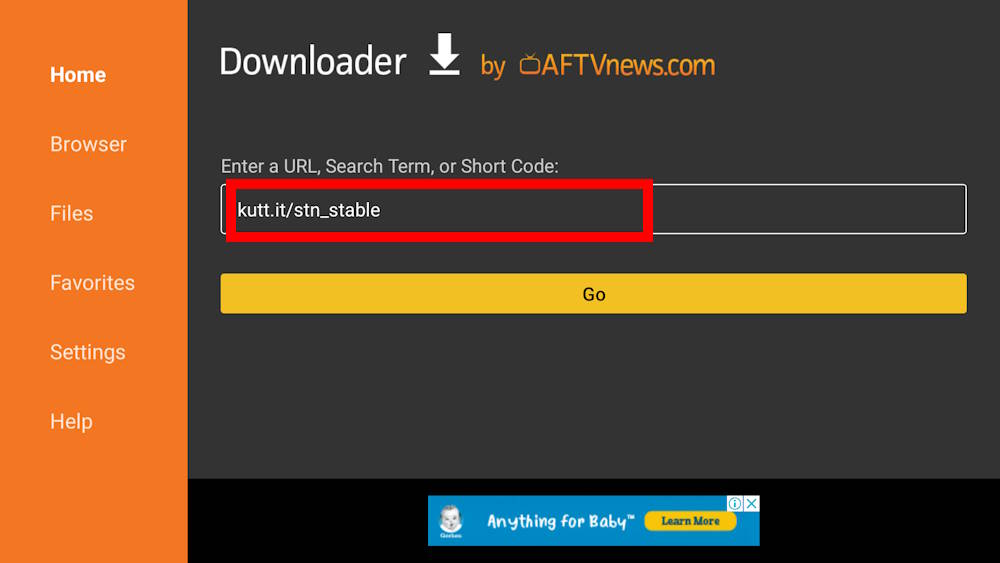
You can use the D-Pad on the voice remote to confirm and move to the Go button, as shown above, to download the APK immediately.
Step 4: Install SmartTube app on Chromecast with Google TV
Once the APK file is downloaded, the Downloader will try to install it. This requires you to grant permission so that the Downloader app can install the APK on the Chromecast with Google TV, as shown in the screenshot below.
This prompt appears only if you haven’t granted the persimmon before.
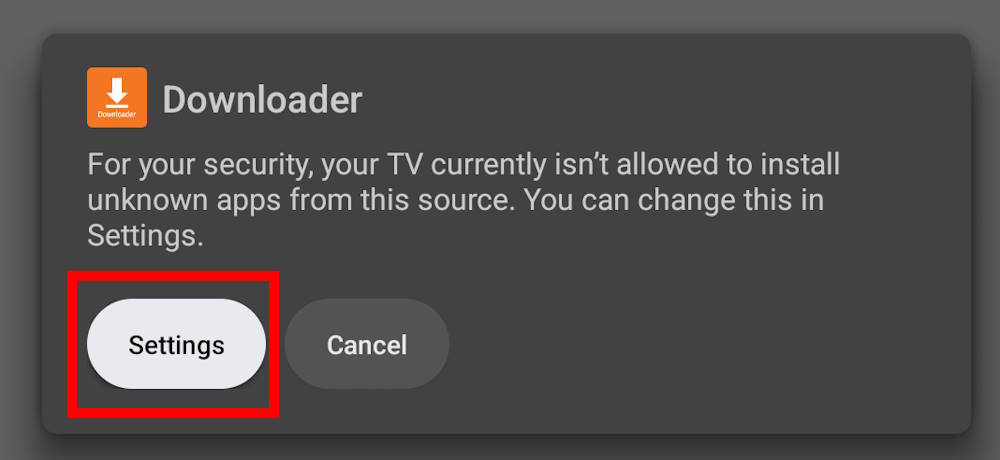
You can tap Settings, as shown in the screenshot above, to open the corresponding settings.
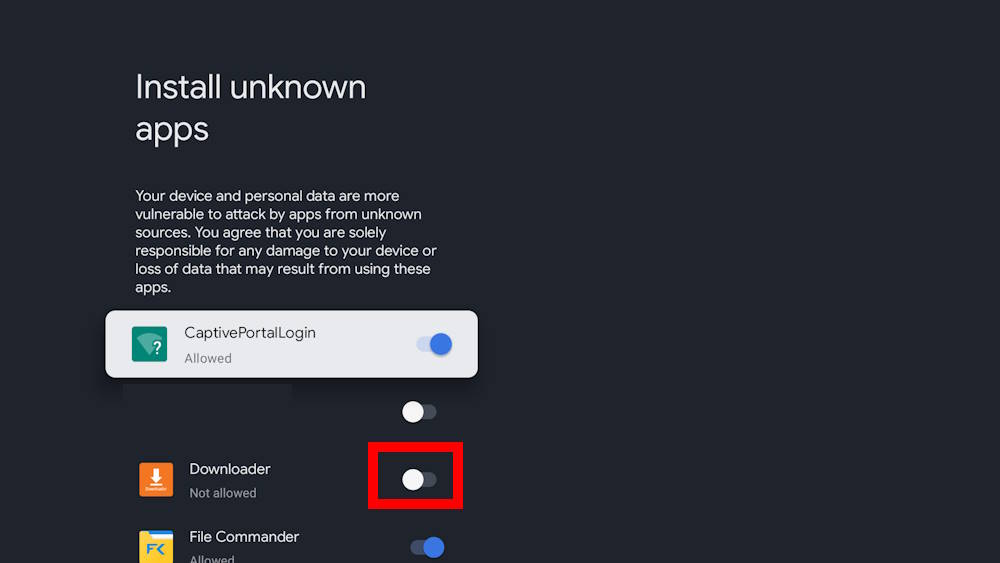
The Install unknown apps page appears, as shown in the screenshot below.
Please note that the entry Install unknown apps in the Settings has been hidden since Android 10. In other words, you can not find this entry on the Chromecast with Google TV even after you enable the developer options. You will be directed to this page only when the app initiates the installation of an APK file.
Of course, if you forget to enable the developer options on the Chromecast with Google TV (as stated in Step 1), you will be notified that you must enable the developer options to install apps other than from the Play Store.
As shown in the screenshot below, you can then use the switch to grant this permission.
Now, the Downloader will try to install the SmartTube APK file, as shown in the screenshot below.
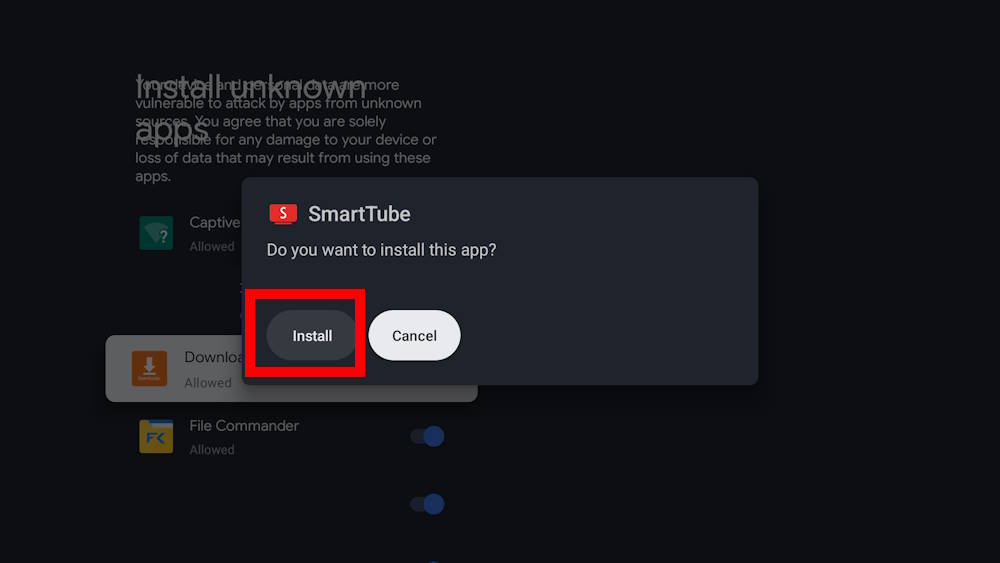
You will be asked whether you want to install the app.
Tap Install to proceed.
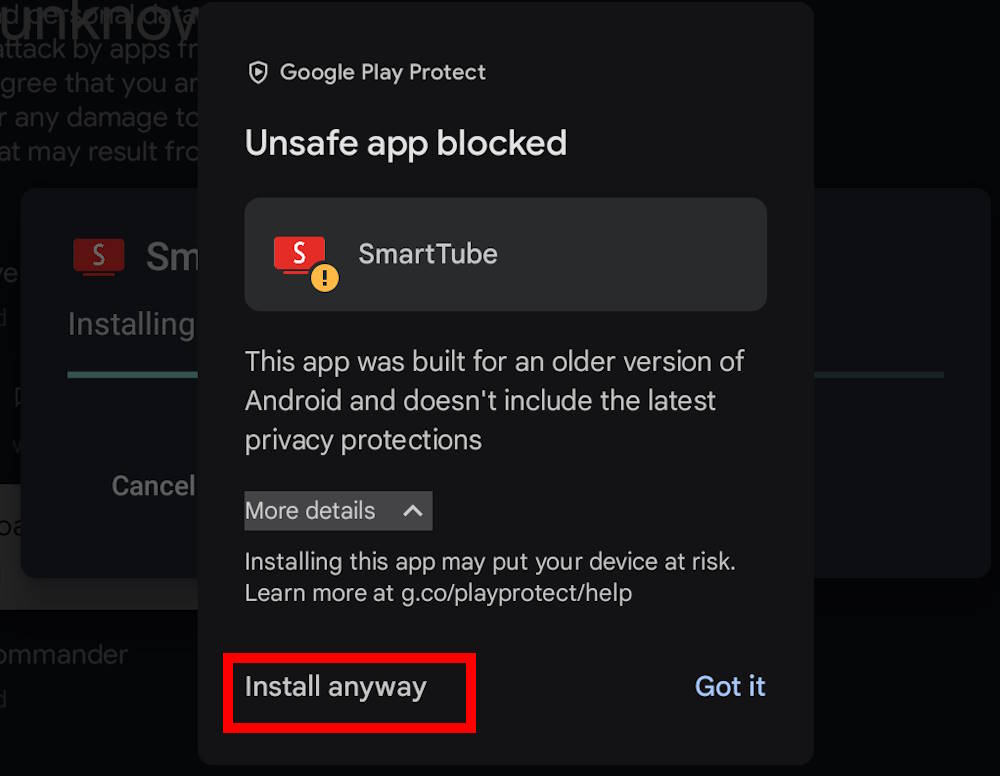
Google Play Protect will try to block most APKs and mark them as “unsafe apps”.
As shown in the screenshot below, Google Play Protect states:
This app was built for an older version of Android and doesn’t include the latest privacy protection
You need to tap More details, as shown below, to get the installation option.

After tapping More Details, you can see the Install Anyway option, as shown in the screenshot below.
Of course, it comes with a warning message:
Installing this app may put your device at risk. Learn more at g.co/playprotect/help
Because the SmartTube app is open source and was downloaded from the official site, it is usually safe to install the app.
Tap Install anyway to install the SmartTube on Chromecast with Google TV so that you can watch YouTube without ads (without paying for YourTube Premium).
Step 5: Watch YouTube without ads on Chromecast with Google TV
You can now simply start SmartTube to enjoy YouTube without ads on Chromecast with Google TV.
The user interface is similar to the official YouTube client, as shown below. You can find settings and options in the menu.

Do you have any questions about using SmartTube to watch YouTube without ads on Chromecast with Google TV (without YouTube Premium)?


If you have any questions about using SmertTube to watch YouTube without ads on Chromecast with Google TV (without YouTube Premium) or on Google TV Streamer, please let us know in the comment box below.
The community will try to help you find the solution.
For Chromecast Audio guides, please visit the Chromecast Audio guide page.
If your question is on Chromecast, including Chromecast Ultra, 1st generation Chromecast, 2nd gen Chromecast (aka Chromecast 2015), and the 3rd gen Chromecast (Chromecast 2018), please visit the Chromecast how-to guides page.



Chromecast User says
Thanks for this, very useful
Anonymous says
Beautiful!