• Skip to primary navigation
  • Skip to main content
  • Skip to primary sidebar
  • Skip to footer

All About Chromecast

  • Home
    • About AllAboutChromecast.com
    • Privacy
    • Forum
    • Contact
  • Manual
  • How-to Guide
    • How to watch YouTube without ads on Chromecast with Google TV (without YouTube Premium) and on Google TV Streamer?
    • A Comprehensive Guide to Enabling and Using the Android Debug Bridge (ADB) on Google TV Streamer and Chromecast with Google TV
    • How to enable developer options in Chromecast with Google TV and Google TV Streamer?
    • How to use Chromecast to stream music to dumb speakers (as Chromecast Audio does)?
    • How to Chromecast Amazon Prime Video to your TV?
    • How to use VLC media player on PC to stream music and video to Chromecast and Chromecast Audio?
      • How to use VLC for Android to stream local media to Chromecast?
    • How to use Chromecast Ultra to stream 4K content?
    • Comparison of 5 methods for streaming local media files to Chromecast
      • How to stream local video to Chromecast?
      • How to use Chromecast to share desktop screen (and audio) to TV?
      • How to use Plex media server to stream local media to Chromecast (from your PC)
      • How to use Videostream extension to stream local videos for Chromecast?
      • How to launch Videostream (and other Chrome apps as well)?
      • How to use Android app to stream local media files to Chromecast?
      • How to use Android screen mirroring with Chromecast
    • Chromecast VS Miracast: everything you need know about Chromecast, wireless display and screen mirroring
      • Chromecast VS Amazon Fire TV stick: which one is for you?
    • How to reset Chromecast (Factory Data Reset,FDR)?
      • How to rename Chromecast?
      • How to change Chromecast WiFi network?
      • How to change Chromecast time format and time zone?
      • How to use Chromecast backdrop to customize the TV screen?
      • How to use Chromecast guest mode?
      • How to check and claim Chromecast offers?
    • How to use Chromecast on Amazon Fire tablets (Fire HD, Fire HDX and Kindle Fire HDX)
    • How to stream photos and videos on OneDrive to Chromecast?
    • How to use the new Chromecast app?
    • Chromecast Preview Program: Everything you need to know
    • How to play games on Chromecast from mobile devices (Android and iOS)?
    • How to use Ethernet Adapter for Chromecast?
    • How to disable Google Home and Chromecast casting notification?
  • Chromecast Audio
    • Chromecast vs Chromecast Audio: which one is for you?
    • How to use Chromecast to stream music to dumb speakers (as Chromecast Audio does)?
    • How to setup Chromecast Audio?
    • How to use Chromecast Audio to stream music? and how to control Chromecast Audio?
    • Meaning of Chromecast Audio LED colors
    • What are the 3 compatible audio cables for Chromecast Audio? and why it matters?
    • Chromecast Audio vs Bluetooth
    • What are supported systems for Chromecast Audio companion device?
    • How to factory data reset Chromecast Audio?
    • How to use Chromecast Audio multi-room group playback?
  • Chromecast 101
    • Google TV Streamer vs Chromecast with Google TV: Everything you need to know
    • Chromecast 4th Gen (Chromecast with Google TV) is coming!
      • How to watch YouTube without ads on Chromecast with Google TV (without YouTube Premium) and on Google TV Streamer?
      • How to use Fast Pair on Chromecast with Google TV to pair headphones and earbuds with Chromecast?
      • Master the Voice Remote for Chromecast with Google TV and Google TV Streamer
      • Meaning of LED light on voice remote for Chromecast with Google TV and Google TV Streamer
    • What’s new in Chromecast 2018 (3rd gen of Chromecast)?
    • Chromecast Ultra vs Chromecast 2nd Gen
    • What’s new in the new Chromecast (Chromecast 2015)
    • Google released $15 Ethernet Adapter for Chromecast
    • Chromecast Preview Program: Everything you need to know
    • A Guide to Chromecast Offers
    • Chromecast VS Amazon Fire TV stick: which one is for you?
    • Chromecast VS Miracast: everything you need know about Chromecast, wireless display and screen mirroring

Chromecast tips and tricks

Chromecast Preview Program: Everything you need to know

Last updated on: September 21, 2016, first published on: September 21, 2016 Leave a Comment

Chromecast Preview ProgramWhat is Chromecast Preview Program?

As a proud owner of the $35 Chromecast device, you already know the software in the dongle is always updated automatically. Google never asks you to update, or reboot to update.

So, you can enjoy the Chromecast without wasting any time on updating the firmware/OS.

On September 13, 2016, Google released Chromecast Preview Program for opt-in Chromecast owners to enjoy the new features and new version of software before such updates are broadly available.

In other words, Chromecast Preview Program, if opt-in, puts your Chromecast device in a special channel that receives software udpate before Google makes the update available for all other devices.

The update you get through Chromecast Preview Program is NOT beta software. It will be the final update (preview).  In  most cases, you just get it a few days (or one or two weeks) earlier than others,

For modern software udpate, it is impractical to push out updates immediately to tens of millions devices. Most companies roll out update in batches so that the update will not crash the server. And at the same time, quick feedback can be gathered before a full-scale roll-out.

Chromecast Preview Program is just to … Continue to read the post....
Filed Under: Chromecast news, Chromecast tips and tricks

How to launch Videostream (and other Chrome apps as well)?

Last updated on: January 21, 2017, first published on: August 14, 2016 Leave a Comment

You can launch Videostream just like other Chrome apps

As explained in this page, Videostream for Google cast is one of the best solutions to stream local contents to Chromecast.

It is both powerful enough and simple enough for most Chromecast owners. We also published a detailed guide on how to use Videostream extension to stream local contents to Chromecast.

But one of the most common questions asked is how to launch Videosteram after initial installation.

Videosteram for Google cast is just a normal Chrome app. So, you can launch Videostream just like launching other Chrome apps.

This is a simple job for Chromebook users, or seasoned Chrome users.

But for many new and casual Chrome users, it can be very confusing about how to launch Chrome app after the installation.

This guide will show you how to launch Videosteram for Google cast app easily. You can even create a shortcut of Chrome apps on desktop.

There are at least 3 different methods to launch Videostream for Google cast from your PC. We will cover all of them one by one.

After Google removed Chrome App launcher for PC (Windows, PC, and Linux) earlier this year, you cannot … Continue to read the post....

Filed Under: Chromecast tips and tricks

How to play games on Chromecast from mobile devices (Android and iOS)?

Last updated on: January 24, 2016, first published on: January 24, 2016 2 Comments

 play games on Chromecast from mobile devicesYou can play games on Chromecast from Android or iOS devices

Two of the new features for Chromecast and Chromecast Audio are multi-room group playback for Chromecast Audio  (for Chromecast Audio only) and playing games on Chromecast through Android and iOS devices (for Chromecast only, including 1st generation Chromecast). Please refer to this guide on how to use Chromecast Audio multi-room group playback.

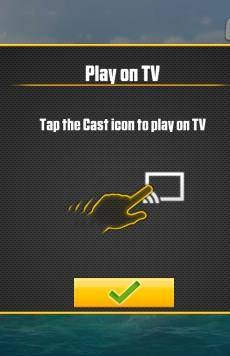
For Chromecast-enabled apps, you can cast the game to the TV through Chromecast. Your mobile device then can act as a game controller and can display other info.

You can also challenge your friends or family members with multi-player games.

Please note, playing Chromecast-enabled games on Android and iOS devices is fundamentally different from Android screen mirroring (Android screen casting).  When you play Chromecast-enabled games on Android and iOS devices, you get split view of the game, not simply mirroring the screen.

This post will try to show you how to play games on Chromecast from Android devices.  The procedure is similar to that from iOS devices.

What are the requirements to play games on Chromecast from Android?

The requirements for playing games on Chromecast from Android devices include:

  1. A ready-to-cast Chromecast. Both the first generation and
… Continue to read the post....

Filed Under: Chromecast news, Chromecast tips and tricks

Chromecast Audio vs Bluetooth: advantages and disadvantages of Chromecast Audio

Last updated on: November 18, 2023, first published on: October 26, 2015 27 Comments

chromecast_audio_vs_bluetoothWhen Chromecast Audio was announced, a lot of people wanted to know the advantages and disadvantages of Chromecast Audio vs Bluetooth.

This is a natural question because Bluetooth speaker is readily available in all countries and regions. Most families have a few Bluetooth speakers, which may be given free when purchasing some expensive home appliances.

Chromecast Audio is new, although Chromecast is about 2 years old.  Even some Chromecast owners may have some misunderstandings about Chromecast Audio.

If you are not sure about the difference between Chromecast and Chromecast Audio, or you are not sure about how Chromecast Audio streams music, you may check our Chromecast Audio guides page.

This post focuses on comparing Chromecast Audio vs Bluetooth to help you understand the advantages and limitations of Chromecast Audio. And therefore, you can make a better decision on whether you should get a Chromecast Audio, or whether you can live with Bluetooth, or whether and how you can use both of them within your budget.

Chromecast Audio vs Bluetooth: audio quality

Bluetooth usually has terrible audio quality because Bluetooth is designed as a low-power, short-range personal area network (PAN). The speed is far lower than that of … Continue to read the post....

Filed Under: Chromecast news, Chromecast tips and tricks Tagged With: Bluetooth, Chromecast Audio

How to use Ethernet Adapter for Chromecast?

Last updated on: July 31, 2015, first published on: July 31, 2015 5 Comments

If you are not aware of it, Google quietly released the $15 Ethernet adapter for Chromecast early this month.  You can get it from Google devices store for $15.

This guide will show you how to use Ethernet adapter for Chromecast to get best connections for your Chromecast.

Who need Ethernet Adapter for Chromecast?

The Ethernet adapter is a lifesaver for those Chromecast owners:

  • Who do not have a wireless router at home.
  • Whose wireless signal is poor near the TV.
  • Whose wireless signal quality is not good.
  • Whose router is configured with AP isolation.
  • Who are streaming very high quality 1080p videos with Chromecast. Please follow this guide if you want to stream local media files.
  • Who are not satisfied with the WiFi connection quality for their Chromecast.

What are in the box of Ethernet Adapter for Chromecast?

In the box, you can find:

  • One Ethernet adapter for Chromecast, which will replace your current power adapter. It is essentially an 850mA power adapter with an Ethernet port.
  • One 1-page quick start guide. It illustrates you how to connect Ethernet adapter for Chromecast to Chromecast and the router.
  • One 36-page safety, regulatory and warranty information in many languages. You
… Continue to read the post....

Filed Under: Chromecast news, Chromecast tips and tricks

Google released $15 Ethernet Adapter for Chromecast

Last updated on: November 22, 2023, first published on: July 9, 2015 Leave a Comment

Ethernet_Adapter_for_Chromecast

Update: a mini user guide is available on how to use the Ethernet adapter for Chromecast.

Google quietly released a $15 Ethernet adapter for Chromecast on July 8.

The adapter will not only improve the network performance of Chromecast, especially if your WiFi network signal (strength and quality) is not so good, but also may introduce new uses for Chromecast.

I will share with you why this $15 Ethernet adapter for Chromecast is actually a big thing for the $35 Chromecast.

Will $15 Ethernet adapter for Chromecast drag you back to the wired era?

The $35 Chromecast is supposed to be very simple to set up and use.

Most of the time, it is.  But not always.

Some Chromecast owners have faced such problems:

  • Weak WiFi signal or poor WiFi signal quality near the TV.
  • No idea how to connect the Chromecast to the wireless network.
  • Very old wireless router only supporting 802.11b.
  • No WiFi in the office.
  • Poor network performance of Chromecast.

Ethernet adapter for Chromecast will surely solve these problems.

Why?

  1. Ethernet connection is far more stable than WiFi. Even the  10M/100M Ethernet ports in some aged routers usually can offer better and smoother streaming than 5G Hz wireless AC  connection
… Continue to read the post....

Filed Under: Chromecast news, Chromecast tips and tricks

How to stream photos and videos on OneDrive to Chromecast?

Last updated on: June 28, 2015, first published on: June 28, 2015 12 Comments

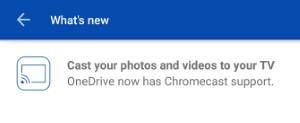
stream_photos_and_videos_on_OneDrive_to_Chromecast_0_supportIn the latest update (June 27) for Microsoft OneDrive for Android, Chromecast support is added. This means you can stream photos and videos on OneDrive to Chromecast.

This is a compliment to streaming local media files as detailed in this guide, as more and more Chromecast owners save contents in the cloud.

The current limitations of Google Photos

For Android users, the most popular cloud photo storage is probably Google Photos, which was recently revamped with many nice features (e.g., unlimited storage).

However, Google photos for Android does NOT support Chromecast currently. FYI,  the old Google+ photos (the predecessor of Google photos)  supported Chromecast.

So, although Google Photos can back up your photos and videos perfectly to the cloud, it is not easy to enjoy them on the TV.

For photos saved in Google Photos, you can create albums. Then add the albums to the Chromecast backdrop.  In this way, you can enjoy your photos on the TV screen through Chromecast automatically.

Please follow this guide on how to set up and use Chromecast backdrop to stream your Google Photos.

For videos, you are probably out of lack. Currently, there is no direct way to stream Google … Continue to read the post....

Filed Under: Chromecast news, Chromecast tips and tricks, Uncategorized

How to use Chromecast on Amazon Fire tablets (Fire HD, Fire HDX and Kindle Fire HDX)

Last updated on: August 27, 2025, first published on: March 27, 2015 141 Comments

use_Chromecast_on_Amazon_Fire_tabletsUpdate (November 2023): an updated guide on installing Google Play Store and apps from Play Store on Amazon Fire tablet
If you are using an Amazon Fire tablet from the 5th gen to the current model (the 13th gen, including the Fire Max 11), it is now easier to install the Google Play Store on the Fire tablet.

Please check this updated guide on how to install the Google Play Store on a Fire tablet.

Also, Fire OS 8 supports screen mirroring (Miracast) on Fire HD 8 12th Gen or later, Fire HD 10 13th Gen or later, and Fire Max 11.

Update (July 2019): Amazon Prime Video app now supports Chromecast

As explained in this guide, the Amazon Prime Video app on Android and IOS now supports Chromecast.

However, the Prime Video app on Fire tablets still does NOT support Chromecast. And you cannot install the Google Play Store version of the Prime Video app on a Fire tablet.

Update (2016/02): Android screen mirroring works on Fire tablet 5th generation and later

For Fire tablet 5th generation and later ONLY (you can check yours in Settings– Device options–Device model), you can also use Screencast for … Continue to read the post....

Filed Under: Chromecast news, Chromecast tips and tricks Tagged With: ADB, Amazon Prime Video, Fire tablet, Google Home, Google Play Store, screen casting, screen mirroring

A Guide to Chromecast Offers

Last updated on: November 22, 2023, first published on: March 1, 2015 2 Comments

chromecast_offers_guide

For most companies, you can only get some special offers or gifts when buying their product.  After paying them, you seldom get free offers from them unless you upgrade or buy a new one again.

Google is really different.

Many Chromecast owners waste free Chromecast offers for them. Are you one of them?

Google gives Chromecast owners offers after offers, including existing owners. All these Chromecast offers are offered free from Google. Some of them are just like cash rebates, e.g.,  Google Play Store credit,  which you can use for apps, music, TV, or movies. Some are free movies.  Of course, some are free trials.

But many Chromecast owners are not aware of such Chromecast offers and, therefore, let the offers expire.

This guide is to show you how to check the Chromecast offers available to you and how to claim (redeem) them from your PC or Android (or iOS) devices.

Step-by-step guide on how to check and claim Chromecast offers from your PC

Please note you can check and claim the Chromecast offers either from your PC or from a mobile device.  If you want to do this on a mobile device, you may skip this section … Continue to read the post....

Filed Under: Chromecast news, Chromecast tips and tricks

Chromecast VS Amazon Fire TV stick: which one is for you?

Last updated on: November 14, 2021, first published on: February 22, 2015 4 Comments

chromecast_vs_amazon_fire_tv_stickWhen considering buying a streaming device for the TV, a lot of people may have a hard time deciding between Chromecast and Amazon Fire TV Stick.

Both gadgets share a similar form factor, share a similar price (less than $40). Both are from reputable tech companies.

It is usually not helpful to read reviews for these two products. It is all about your needs: what do you want to do with the HDMI Stick?

This guide will try to help you decide which one is suitable for YOU: Chromecast or Amazon Fire TV Stick?

I have no intention (possible?) to make a judgment on which one is better because the better one is not always suitable for you. What you need is Mr. or Ms. Right.

Chromecast VS Amazon Fire TV Stick: 2 similar but fundamentally different products

Chromecast and Amazon Fire TV Stick have a similar size and weight.  They both need external power through a Micro USB port. They both must be inserted into an HDMI port on the TV.

They both can turn your TV into a connected entertainment device.

But Chromecast and Amazon Fire TV stick are fundamentally different:

  • Amazon Fire TV Stick is a
… Continue to read the post....

Filed Under: Chromecast news, Chromecast tips and tricks Tagged With: Amazon Prime Video, Android, chromecast, desktop sharing, Fire TV, Fire TV stick, screen mirroring

Chromecast guest mode guide

Last updated on: October 31, 2019, first published on: January 2, 2015 12 Comments

Chromecast guest mode allows your guests to cast to Chromecast without connecting to your WiFi network.

This Chromecast guide explains everything you need to know about the Chromecast guest mode: what the guest mode is, how it works, how to enable or disable it, how to cast in the guest mode, and the limitations of the guest mode.

What is Chromecast guest mode? When will you need it?

By default, the only way to use Chromecast is by joining your device to the same network as Chromecast.

This is part of the security consideration: you don’t want your neighbor to mess up your TV screen.

Sometimes, you have some guests in the house and they want to share something interesting from their devices through Chromecast. In this case, you have to connect their devices to your network to use the Chromecast.

If you have some sensitive files in your home network, you probably are reluctant to have them connected to your network. You may trust your friends, but you cannot trust their devices which may have nasty malware.

Chromecast guest mode comes to solve your dilemma. Thanks to the recent update in Chromecast.

You can turn on guest mode … Continue to read the post....

Filed Under: Chromecast news, Chromecast tips and tricks Tagged With: Android, chromecast, gust mode, screen mirroring

Android screen casting for Chromecast is now supported on all Android devices with KitKat 4.4.2 or later

Last updated on: November 22, 2023, first published on: December 12, 2014 100 Comments

Screen_mirroring_with_chromecast_cast_screen_casting_now

The latest Chromecast app (1.9.6) update brought  Android screen casting (screen mirroring), one of the most anticipated features of Chromecast, to all Android devices with Android KitKat 4.4.2 or later.

If you are new to this feature, you may refer to this post.

Android screen casting makes the TV your second screen!

Essentially, Android screen casting (screen mirroring) through Chromecast will make your TV the second screen of your Android devices.

You can enjoy videos, games, music, and everything on the TV with Android screen casting through Chromecast.

Anything displayed on your Android screen and the audio can be mirrored on your TV through Chromecast.

This makes your $35 Chromecast more valuable.

Previously, the screen casting feature was only supported on a few selected (high-end) devices.

How to start and stop Android screen casting?

After you update the Chromecast app to 1.9.6 or later, you can find the cast screen option as shown below.

If your device is not among the supported device list (see this post for the updated officially supported devices), you will see the following warning message.

“Screen casting is not optimized for this device, your experience may vary.”

Tap OK to continue, as shown below.… Continue to read the post....

Filed Under: Chromecast news, Chromecast tips and tricks Tagged With: Chromecat, screen casting, screen mirroring

How to use Chromecast backdrop to customize the TV screen?

Last updated on: November 22, 2023, first published on: October 22, 2014 10 Comments

How_to_use_Chromecast_backdrop_to_customize_TV_screen_current_photo

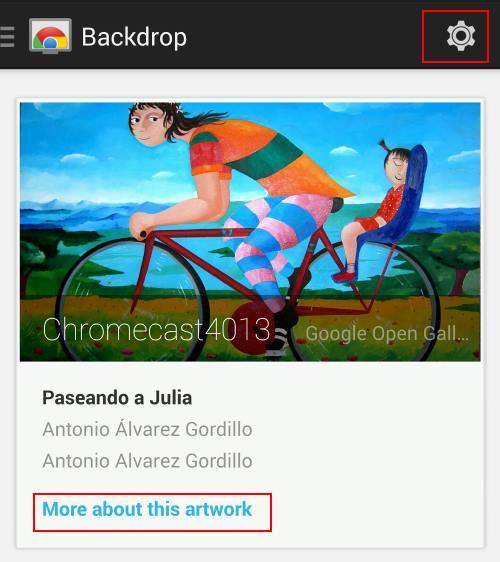
The chromecast backdrop feature was officially released early this month. Now, you can customize the TV screen when you are not casting content through Chromecast.

This Chromecast guide explains everything you need to know about the Chromecast backdrop.

What contents can be used for Chromecast backdrop?

Essentially, Chromecast backdrop allows you to fill the TV screen with the following contents:

  • Your photo albums (private or public) in Google+. You can enable or disable albums one by one.
  • Artwork from galleries and museums around the world via the Google Cultural Institute.
  • News and lifestyle images from The New York Times, The Guardian, Saveur, and other sources. This is currently for US users only, possibly due to content distribution restrictions.
  • Satellite imagery of some of the hardest-to-reach places on Earth from Google Maps.
  • Photos from the Google+ community

You can enable or disable these contents individually from your Android devices or iOS devices.

More interestingly, you can even learn more about the current images shown on TV  by asking questions directly in Google Voice Search.

How to set up  Chromecast backdrop to customize the TV screen?

In your Android device, start the Chromecast Google Home app.

Tap the menu key (3 … Continue to read the post....

Filed Under: Chromecast news, Chromecast tips and tricks Tagged With: backdrop, chromecast, Chromecast app, Google Home app, Photos, TV

Screen mirroring with Chromecast

Last updated on: November 22, 2023, first published on: July 12, 2014 229 Comments

Screen_mirroring_with_chromecast_cast_screen_casting_now

Update: with Chromecast app update to 1.9.6, Android screen casting (screen mirroring) is available in ALL Android devices with Android KitKat 4.4.2 or later versions. 

As announced in Google I/O 2014, Chromecast would get some nice updates and new features. We will discuss these new features in later posts once they are available publicly.

Screen mirroring with Chromecast Arrives: cast your Android screen without relying on apps

One of the most exciting new features of Chromecast is screen mirroring (or screencasting) for Android devices.  You can mirror whatever is on your  Android devices to a TV without using any apps (of course, for non-Nexus devices, you need the Chromecast app), including audio.

Now, with the Chromecast app update (to 1.7.4), screen mirroring with Chromecast is now fully working on some selected (models) Android devices.

Please note screen mirroring is different from the wireless display that has been introduced to Android since Jelly Bean 4.2. Wireless display in Android uses Miracast technology. To use this feature, you need a receiver (usually a TV) that supports Miracast.  Currently, only some high-end smart TVs support Miracast. Otherwise, you need to get a Miracast dongle/adapter (for example, Netgear Push2TV Wireless Display … Continue to read the post....

Filed Under: Chromecast news, Chromecast tips and tricks

How to use Plex media server to stream local media to Chromecast (from your PC)

Last updated on: May 5, 2014, first published on: May 5, 2014 148 Comments

Why do we need one more solution (robust and free) of streaming local media to Chromecast?

To stream local media to Chromecast is not as simple as many expected. Google intends to make Chromecast an internet thing, not a local media player.

If you used Chromecast for online streaming, you probably are very happy with this $35 device. It works with more and more services, and the online streaming quality is quite impressive most of the time.

But if you have a lot of media files in the hard drive of your PC, you may feel the pain to stream local media to Chromecast  (to watch on the big screen).

In the Chromecast how-to guides section, I shared two methods of streaming local media to Chromecast:

  1. Stream local video to Chromecast through a Chrome browser tab.
  2. Share the whole desktop screen (and audio) to Chromecast through desktop sharing.

Both of the methods are not robust, with obvious limitations.

Using a Chrome tab to stream local media to Chromecast is the simplest method. But it is severely limited by the media formats that you can play through Chrome browser. Very often, the user has to install additional software or … Continue to read the post....

Filed Under: Chromecast tips and tricks Tagged With: chromecast, library, local content, Plex, Plex media server, plex web app, video

Chromecast VS Miracast: everything you need know about Chromecast, wireless display and screen mirroring

Last updated on: November 22, 2023, first published on: February 11, 2014 162 Comments

chromecast-vs-miracast

Update 1: Android screen mirroring through Chromecast is available! Please read this post for details.

Chromecast was hailed by Time Magazine as the most innovative gadget in 2013.  This affordable HDMI dongle changes the way people consume content, especially online video and music.

Most people now have multiple screens: smartphones ( normally 3.5-7″), tablets (normally 7-12.2″), laptops (normally 10-17″), PCs (normally 19-34″), and of course, TVs (normally 34-80″).  Different sizes give different experiences and some content. For example, full-length movies are preferred on a larger TV screen.

How to unify these screens?

There are different answers from different vendors. But most of them are vendor-dependent. In other words, the solution only works for some specific-branded devices. For example, Apple has AirPlay (which requires Apple TV); Samsung introduced  AllShare Cast since Galaxy S3 (which requires certain Samsung Galaxy devices).

Chromecast delivered an answer that is independent of hardware vendors!

Another hardware-independent answer is Miracast.

Because Android has supported Miracast natively since Jelly Bean 4.2, a lot of Chromecast owners confused Chromecast with Miracast.

I will try to explain to you Chromecast vs Miracast: the difference between Chromecast and Miracast (Miracast enabled devices), the advantages and disadvantages of … Continue to read the post....

Filed Under: Chromecast news, Chromecast tips and tricks Tagged With: AllCast, Amazon Prime Video, app, chrome, chromecast, Chromecast Ultra, google cast sdk, Google Home, local content, miracast, Plex, screen mirroring, Videostream for Chromecast, VLC for Android, VLC media player, wireless display

« Previous Page

Primary Sidebar

Stop Telling Boring One-Liners. Start Telling Unforgettable Stories

All Over The Map: Funny Stories for Every Place You Go—From 36,000 Feet to the Bedroom
$4.99
Buy on Amazon

Chromecast with Google TV

Chromecast with Google TV (HD) - Streaming Stick Entertainment on Your TV with Voice Search - Watch Movies, Shows, and Live TV in 1080p HD - Snow
Buy on Amazon
Sale Google Pixel 10 - Unlocked Android Smartphone with Gemini, Your Google AI Assistant - Advanced Triple Rear Camera, Fast-Charging 24+ Hour Battery, and 6.3' Actua Display - Frost - 128 GB
Google Pixel 10 - Unlocked Android Smartphone with Gemini, Your Google AI Assistant - Advanced Triple Rear Camera, Fast-Charging 24+ Hour Battery, and 6.3" Actua Display - Frost - 128 GB
$749.00
Buy on Amazon

RSS Galaxy S25 Guides

  • All New Features of One UI 8 (Android 16) Update for Galaxy S25, S24, S23, and S22
  • One UI 8 Update Highlights for Galaxy S25, S24, S23, and S22
  • How to manage camera modes on Galaxy S25 (and Galaxy S24, S23, S22, and S21 with One UI 7 update)?
  • How to Use Galaxy S25 Camera App?
  • A Definite Guide to Galaxy S25 Flipsuit Case
  • How to Access and Customize Now Brief on Galaxy S25?
  • Meaning of Galaxy S25 Status Icons and Notification Icons
  • Layout of Galaxy S25, S25+, and S25 Ultra
  • New Galaxy AI features in Galaxy S25, S25+, and S25 Ultra
  • Top 10 new features of Galaxy S25, S25+, and S25 Ultra

RSS Galaxy S24 Guides

  • The definitive guide to One UI 7 (Android 15) update for Galaxy S24, S23, S22, and S21
  • The Definitive Guide to Galaxy AI on Galaxy S24, S23, S22, Fold 6, Fold 5, Flip 6, and Flip 5
  • Use the Light Performance Profile to Extend Battery Life and Reduce Heat on Galaxy S24, S23, S22, and S21 (all Samsung Galaxy Phones with Android 14/One UI 6.0)
  • How to adjust lock screen timeout on Galaxy S24, S23, S22, and other Galaxy devices?
  • How to use Circle to Search on Galaxy S24?
  • Meaning of Galaxy S24 status icons and notification icons on Galaxy S24, S24+, and S24 Ultra

RSS Galaxy S23 Guides

  • Explanation of all One UI 6.1 features for Galaxy S23, S23+, S23 Ultra, and other Galaxy devices
  • How to use One-Tap Editing in the Android 14 (One UI 6) update?
  • How to enable and use Auto Scan to scan documents automatically on Galaxy S23, S22, and S21?
  • New camera features in One UI 6 (Android 14) update for Galaxy S23, S22, and S21
  • Galaxy S23 User Manual in American English with Android 14 (One UI 6) Update
  • Galaxy S23 User Manual in British English with Android 14 (One UI 6) update

RSS Galaxy S22 Guides

  • A Complete Guide for Android 14 (One UI 6) Update on Samsung Galaxy Devices
  • How to touch and hold to customize Lock Screen on Galaxy S22, S21, and S20 with the Android 13 update?
  • How to use Maintenance Mode on Galaxy S23, S22, S21, and S20 with Android 13 (One UI 5)?
  • How to extract text from photos and images on Galaxy S22, S21, and S20?

Chromecast Tips and Tricks

RSS Galaxy S21 Guides

  • Top 12 new features in Android 12 update for Galaxy S21, S20 and S10
  • Android 12 update vs One UI 4.0 vs One UI 4.1: update Galaxy S21, S20 and S10 to Android 12
  • How to set and resize photo size on Samsung Galaxy S21, S20, S10, and S9 without using any third-party apps?
  • How to Customize Galaxy S21 Home Screen?

RSS Headphone Guides

  • Understand The Physics of Open-Ear Directional Audio
  • Bone Conduction Headphones Buyer’s Guide: 2026 Edition
  • Bone Conduction Audio Technology: A Technical Breakdown
  • Science And Architecture of Bluetooth Auracast
  • Bluetooth LE Audio and the LC3 Codec: A Technical Deep Dive
  • The Physics and Engineering of Super Wide Band (SWB) Voice
  • True Wireless Stereo (TWS) Explained
  • The Complete Technical Guide to the Galaxy Buds 4 & Buds 4 Pro

RSS Moto G Guide

  • Stylus features on Moto G Stylus (all models)
  • What’s new in Moto G 2024? Moto G 5G 2024 vs Moto G Power 2024 vs Moto G Play 2024
  • Understand Moto G Model Names
  • Thank You
  • Moto G8 vs Moto G8 Power vs Moto G8 Power Lite vs Moto G Power vs Moto G Stylus vs Moto G Pro vs Moto G fast: What are the differences?
  • Moto G8 User Manual for Moto G8 Plus and Moto G8 Play

RSS Neato XV Guides

  • Neato XV Revival Guide: Repair, Hack & Restore (The 2026-2027 Edition)
  • The Scavenger’s Guide: How to Buy “Broken” Neato XVs for $20 (And Fix Them)
  • 3D Print Your Own Spare Parts: The Neato XV STL Guide
  • Stop Guessing: How to Use NeatoControl to “X-Ray” Your Robot
  • The Forbidden Upgrade: Neato Firmware Update to Vorwerk VR100 (Offline Guide)
  • The Vault: Neato XV & Vorwerk VR100 Software Repository
  • Neato Charging Station Blinking Green? The $2 C10 Capacitor Fix
  • Neato Error 3000 Fix: Lidar Motor & Belt Replacement Guide (XV-21, XV-15, XV-13, XV-11)
  • The Battery Dilemma: How to Double Your Neato XV’s Runtime (NiMH vs. Lithium)?
  • Why the “Ancient” Neato XV is Better Than Modern Robots (In 2025 and 2026)

RSS Moto E Guide

  • Official user manual for Moto E6, Moto E6 Plus, Moto E6 Play, and Moto E6s
  • Moto E6 Guides
  • Moto E4 vs Moto E4 Plus: major differences between Moto E4 and Moto E4 Plus
  • How to use alarm and customize alarm tones on Moto E, Moto G and Moto X?

RSS Amazon Fire Tablet Guides

  • Fire Tablet Buyer’s Guide 2025
  • How to use Writing Assist on Fire Tablet?
  • How to use Wallpaper Creator on your Fire tablet?
  • How to Use Webpage Summaries on Your Fire Tablet?
  • What’s new in Fire HD 8 2024 (12th Gen)?

Footer

RSS Drive In Singapore

  • Singapore ERP (Electronic Road Pricing): 6 Facts You Need to Know
  • Car Insurance in Singapore Explained
  • Top 5 rules of driving in Singapore safely and legally during COVID-19 Circuit Breaker period
  • Understand COE Price by 10 Simple Questions
  • How to convert a foreign driving license to a Singapore driving license?
  • How to get a Touch ‘n Go card as a Singapore driver?
  • What is covered in the car warranty in Singapore? What is not?
  • What is the Singapore Road Speed Limit?

RSS Galaxy S10 Guides

  • End of security update for Galaxy S10, S10+ and S10e
  • Top 10 new features in Android 10 update for Galaxy S10
  • Top 5 new features added in Galaxy S10 September Update
  • How to move apps to the micro SD card to free phone storage on Galaxy S10 ?
  • Galaxy S10 wireless charging guide

RSS Samsung Galaxy S5 Guide

  • How to enter Galaxy S5 recovery mode?
  • How to set Galaxy S5 photo size and video size?
  • How to use Galaxy S5 camera voice control?

RSS Moto X Guide

  • Welcome on board, Motorola Razr!
  • Official Moto X4 User manual (User guide for Moto X 4th Gen , Moto X 2017)
  • What’s new in Android Marshmallow update for Moto X (Moto X 2015, Moto X 2014, Moto X Style and Moto X Pure edition)?

RSS Chinese Music World

  • How to Cast Chinese Music Radio to Chromecast or Google Home?
  • 十面埋伏 (Ambushed,Pipa,琵琶曲,Shi Mian Mai Fu)
  • Meet in Yurt(敖包相会, Ao Bao Xiang Hui,Folk song,民歌)
  • Purple Bamboo Melody(紫竹调, Zi Zhu Diao,Yangqin,扬琴)
  • Solitary Orchid (幽兰, You Lan, Guqin, 古琴)

RSS Galaxy S20 Guides

  • The End of the Road: No Android 14 Update for the Galaxy S20
  • How to Use Enhanced Processing on Galaxy S20 with Android 11 update?
  • How to access, use, and customise widgets on Galaxy S20 lock screen and AOD screen with Android 11 update for Galaxy S20?
  • How to update Galaxy S20 to Android 11?
  • How to use Galaxy S20 lockdown mode?
  • Top 11 new features in Galaxy S20 Android 11 update
  • How to use Galaxy S20 recovery mode?

RSS Google Home Speaker

  • How to Use Quick Gestures on Nest Hub 2nd Gen and Nest Hub Max?
  • Understand the layout of Nest Hub (including Nest Hub 2nd Gen, Google Home Hub)
  • How to control Nest Audio?
  • Nest Audio Guides
  • Layout of Google Nest Mini (Google Home Mini 2nd Gen)
  • How to connect Google Home to a Bluetooth speaker?

© 2013–2026 · All About Chromecast: The best Chromecast guide, tips and tricks for Chromecast, Chromecast Ultra, and Chromecast Audio. · Hosted by PTRHosting
· Powered by Genesis framework for WordPress

Disclaimer: Chrome, Chromecast, Chromecast Ultra, and Chromecast Audio are trademarks of Google Inc. This website is NOT affiliated with Google Inc in any way. All the information provided on this website is provided on an "as is" and "as available" basis and you agree that you use such information entirely at your own risk.

Add All About Chromecast to your Homescreen!

Add
We use cookies to give you the best online experience. By using our website you agree to our use of cookies in accordance with our cookie policy.
pixel